Human Focus gives customer administrators a way to review who can access key parts of the system and which records each user level can see. The Organisation Permissions page brings together settings for User Management, the Reporting Dashboard, e-Checklist and Bulk Certificate Upload.
These settings can reflect how responsibility is divided between central managers and people working at particular sites or within particular departments. This update explains the standard configuration and how to request a change. Your organisation’s settings may differ.
For User Management and the Reporting Dashboard, access depends on four settings working together:
- Module access: Whether a user level can open that area of the system.
- Site permissions: Whether it can see all sites or only its own site.
- Department permissions: Whether it can see all departments or only its own department.
- User level permissions: Which levels of users it can view, manage or report on.
A user must have access to the module, and a record must fall within the permitted site, department and user level before it appears. e-Checklist and Bulk Certificate Upload use simpler access rules, explained below.
Administrative access follows the order Manager, Sub-Manager, Supervisor and Champion, with Contractor and lower levels beneath them. By default, each level can access its own account and users at lower levels within its permitted site and department. It cannot see users at a higher level or other users at the same level.
For example, a Supervisor can manage Champions and lower-level users in their own site and department, but cannot manage another Supervisor by default. Same-level access can be enabled on request where an organisation needs users to work with others at their own level. Access to higher levels remains restricted.
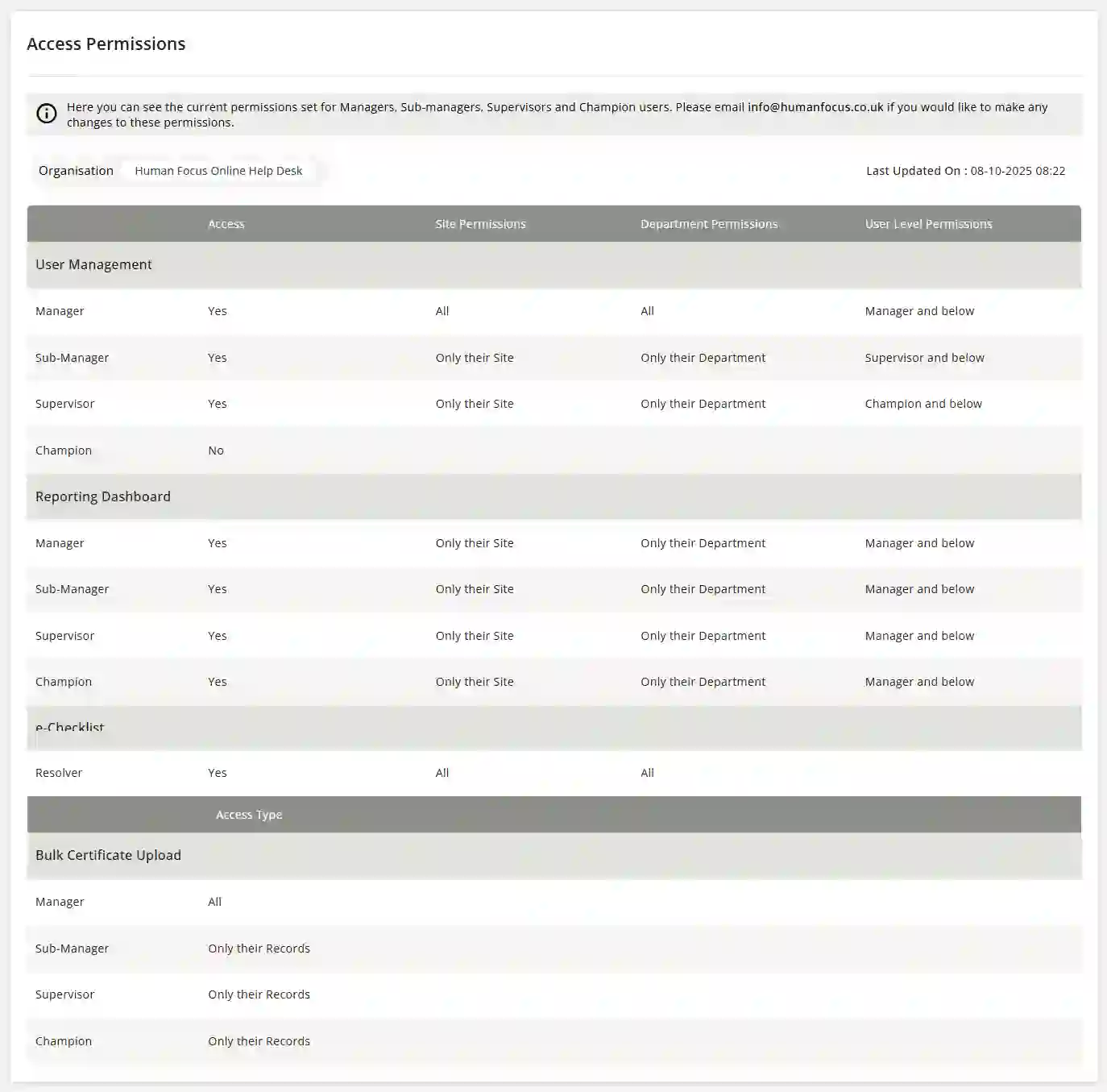
The standard settings for User Management and the Reporting Dashboard are:
These are standard settings, not a fixed arrangement for every customer. Managers can be limited to their own site and department on request. Reporting Dashboard access can also be enabled for Champions where needed.
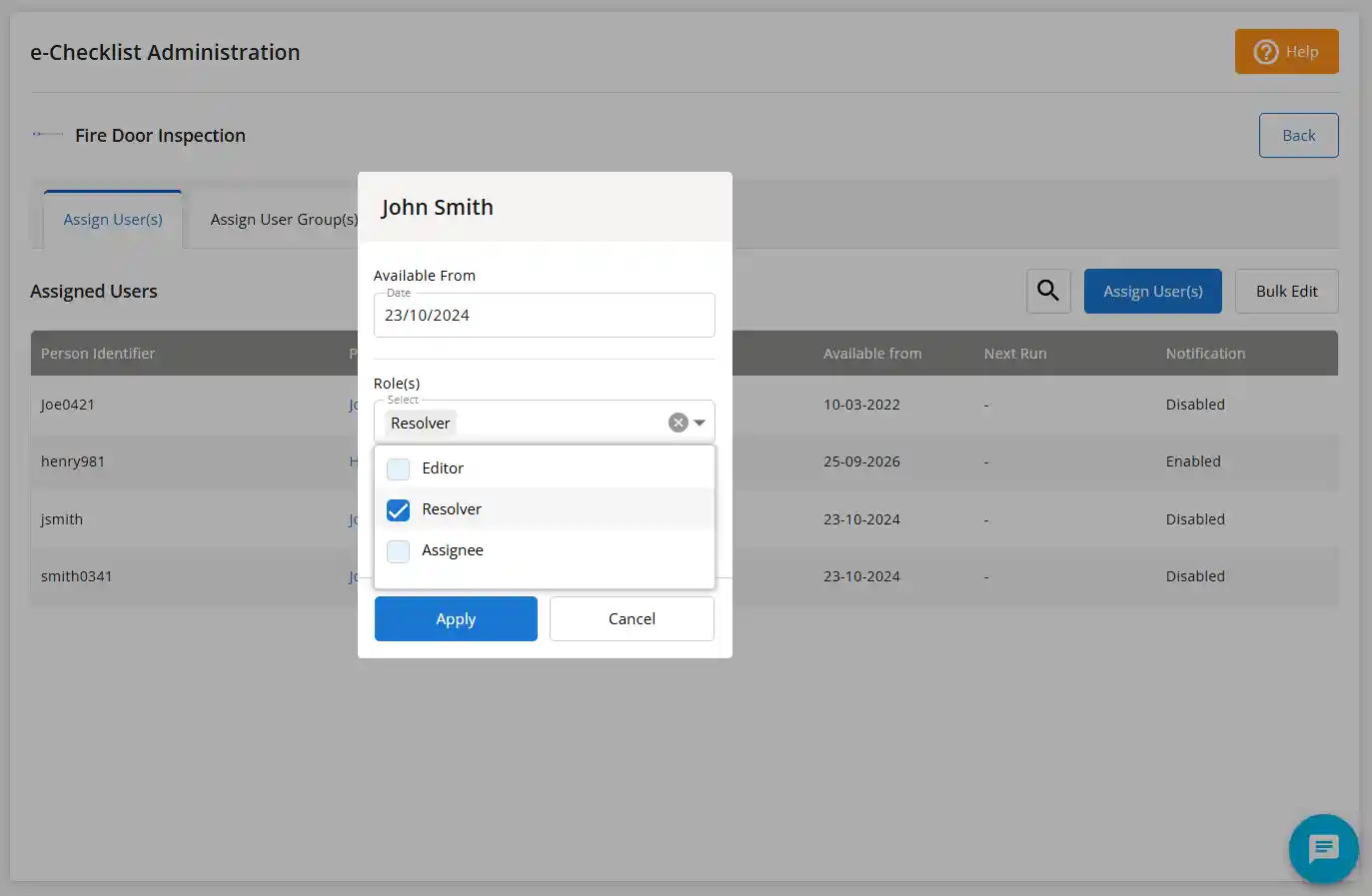
e-Checklist uses a Resolver role rather than the four administrative user levels shown above. In the standard configuration, the Resolver role has access across all sites and departments.
Bulk Certificate Upload uses an Access Type setting instead of site and department permissions. Managers can upload certificates for all records by default. Sub-Managers, Supervisors and Champions are limited to their own records.
These differences matter when reviewing an organisation’s permissions: access in one module does not automatically describe what a user can do in another.
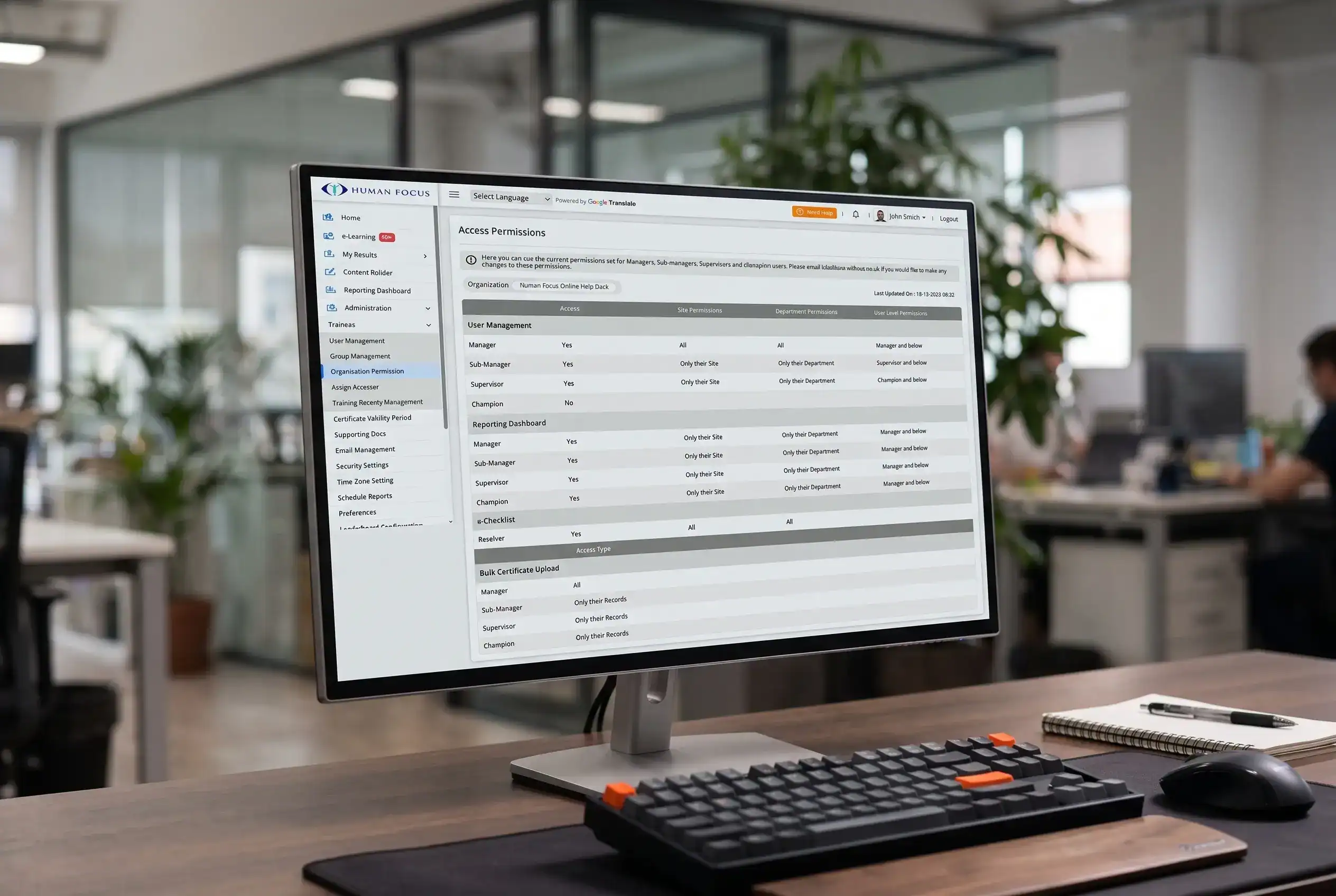
Customer administrators can view their organisation’s current settings under Administration → Trainees → Organisation Permissions (Access Permission). The page shows the organisation and its Last Updated On date, followed by permissions for each module.
To request a change, email info@humanfocus.co.uk with the module, user level and setting to be changed. For example, you could request Reporting Dashboard access for Champions or same-level access for Managers. Human Focus makes permission changes on request; the Organisation Permissions page is for customers to review the settings currently applied.
It is useful to review these settings when administrative responsibilities change, particularly when someone moves to a different site, department or role.
Organisation Permissions determine broad access to modules and records. The Editor and Viewer controls for User Groups and Content Builder e-Folders provide more detailed permissions within those individual areas. For instance, an eligible user may be allowed to view a particular User Group without being able to change its membership or assigned training.
Together, these controls allow organisations to consider both the scope of a person’s system access and the tasks they need to perform within it.